
top, these steps can help you understand the problem and work toward a reliable solution.
If your computer keeps restarting unexpectedly, the problem may be related to overheating, outdated drivers, faulty hardware, or Windows system errors. Identifying the cause is the first step toward finding a reliable solution. Before replacing any components, check the basic settings and follow the troubleshooting methods explained in this guide.
When your computer keeps restarting, it is important to notice whether the problem occurs during startup, while running demanding programs, or during normal everyday use. These details can help you identify the cause and choose the right troubleshooting method without wasting time on unnecessary repairs.
Table of Contents
Why Does My Computer Keep Restarting?
When a computer restarts unexpectedly, identify what happens immediately before the restart. Does the system become unusually hot? Does it restart when you open a particular program?
Several problems can explain why your PC keeps restarting. Identifying the cause will help you choose the right solution.
1. Overheating
If the problem continues, check the power supply and other hardware components.
If your computer keeps restarting without displaying an error message, check the power connection, cooling system, and recent Windows changes first. Understanding when the restart occurs can help you distinguish between a software problem and a possible hardware failure.
2. Windows Errors and Driver Problems
An incompatible driver, corrupted system file, or problematic update can make Windows unstable. In some cases, a system error triggers an automatic restart before you have enough time to read the error message.
“Check whether a recent Windows update is causing your computer to restart repeatedly.”
3. Faulty Hardware
Problems with RAM, a power supply, a motherboard, or other components can also cause unexpected restarts. Hardware-related problems may become more noticeable during demanding tasks.
4. Power Supply Issues
An unstable power connection or failing power supply can interrupt the electricity reaching your computer. This may cause the system to shut down or restart, particularly under heavy workloads.A faulty power supply can cause your computer to keep restarting without warning.”
5. Malware or Software Conflicts
Malicious software and conflicting applications can affect system stability. Although malware is not the most common explanation for every restart, checking for threats is a sensible troubleshooting step.
Understanding these possible causes will help you choose the most appropriate fix instead of trying random solutions.
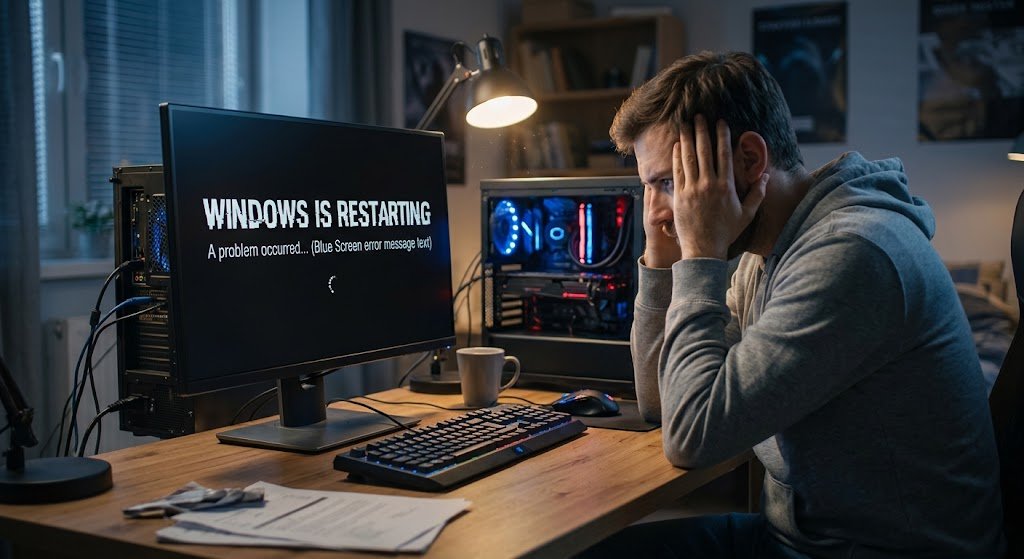
9 Best Fixes for a Computer That Keeps Restarting
If your computer keeps restarting after basic checks, do not replace any hardware immediately. Follow these nine fixes one by one, starting with simple checks and moving toward more advanced troubleshooting methods. This approach can help you identify the cause without making unnecessary changes.Before making major changes, save your work and back up important files if possible. If your computer restarts frequently, avoid unnecessary troubleshooting that could put your data at risk.
1. Check Your Computer’s Temperature
Overheating is one possible reason a PC keeps restarting, particularly during gaming, video editing, or other demanding activities.
Start by checking whether the computer feels unusually hot or its fans sound louder than normal. Make sure the air vents are not blocked by walls, furniture, blankets, or dust.
For a desktop computer, inspect the vents and fans for visible dust. Turn off the computer and unplug it before cleaning accessible areas. Use suitable compressed air carefully, following the manufacturer’s instructions.
For laptops, place the device on a hard, flat surface rather than a bed or cushion. Soft surfaces can block ventilation and prevent heat from escaping.
You can also use a reputable hardware-monitoring utility to check component temperatures. Compare the readings with the manufacturer’s recommended operating limits.
If the computer continues overheating, its cooling fan, heatsink, or thermal interface may need attention from a qualified technician.

2. Disable Automatic Restart After a System Failure
Windows may automatically restart after a serious system error. This can make it difficult to identify the original problem because the error message disappears quickly.
Disabling automatic restart after a system failure can help you see the error information.
Follow these steps:
- Press Windows + R to open the Run dialog.
- Type sysdm.cpl and press Enter.
- Open the Advanced tab.
- Under Startup and Recovery, select Settings.
- If available, uncheck Automatically restart under System failure.
- Select OK to save the changes.
The next time a system failure occurs, Windows may display a stop code instead of restarting immediately.
Write down the error message or code and use it to investigate the cause.
Remember that this setting does not repair the underlying problem. It simply makes certain system failures easier to diagnose. If your computer is experiencing sudden power loss rather than a Windows error, this setting may not help.

3. Install Available Windows Updates
Outdated system components or unresolved software problems can sometimes contribute to instability. Installing appropriate Windows updates may help correct known issues.
To check for updates:
- Open the Start menu.
- Select Settings.
- Open Windows Update.
- Select Check for updates.
- Install suitable available updates.
- Restart your computer if Windows requests it.
Allow any update process to finish before turning off the computer.
If the restarting problem began immediately after a particular update, investigate that update rather than repeatedly installing or removing software at random. Depending on the circumstances, uninstalling a problematic update may be appropriate.
Keep in mind that Windows normally restarts during some update processes. The concern is repeated, unexpected restarting outside the normal update procedure.
4. Update or Roll Back Device Drivers
Device drivers allow Windows to communicate with hardware such as graphics cards, network adapters, sound devices, and storage controllers.
An incompatible or faulty driver can cause crashes and unexpected restarts. If your PC keeps rebooting after a driver update, the recently changed driver deserves particular attention.
To investigate driver problems:
- Right-click the Start button.
- Open Device Manager.
- Expand the relevant hardware category.
- Right-click the device you want to inspect.
- Open Properties and review its status.
If the issue began after a driver update, check whether the Roll Back Driver option is available under the Driver tab.
You can also obtain compatible drivers through Windows Update or the official website of your computer or hardware manufacturer.
Avoid downloading drivers from unfamiliar websites. Incorrect or modified drivers can introduce additional security and stability problems.
After making a change, restart the computer and observe whether the issue returns.Outdated drivers and corrupted system files can cause unexpected restarts. If your computer keeps restarting after a Windows update, check for available driver updates and review Windows error messages. You can also use Windows troubleshooting tools to identify possible software problems before considering more advanced repairs.
If your computer keeps restarting after installing a new driver, consider rolling back that driver or installing a compatible version from the manufacturer’s official website. Test the computer afterward to see whether the change improves system stability.

5. Check and Repair Windows System Files
Corrupted Windows system files can interfere with normal operation and sometimes contribute to system crashes.
Windows includes two useful tools: Deployment Image Servicing and Management (DISM) and System File Checker (SFC).
To use them:
- Open the Start menu.
- Search for Terminal or Command Prompt.
- Choose the option to run it as an administrator.
- Run the following command:
DISM.exe /Online /Cleanup-Image /RestoreHealth
- Wait for the operation to finish.
- Run this command:
sfc /scannow
- Allow the scan to complete and follow any repair messages.
- Restart the computer and check whether the problem continues.
DISM can repair the Windows image used for system maintenance, while SFC checks protected system files and attempts to repair corrupted versions.
These tools may resolve problems caused by damaged system files, but they will not fix every hardware or software issue. If the scans report errors they cannot repair, record the results before trying more advanced recovery options.
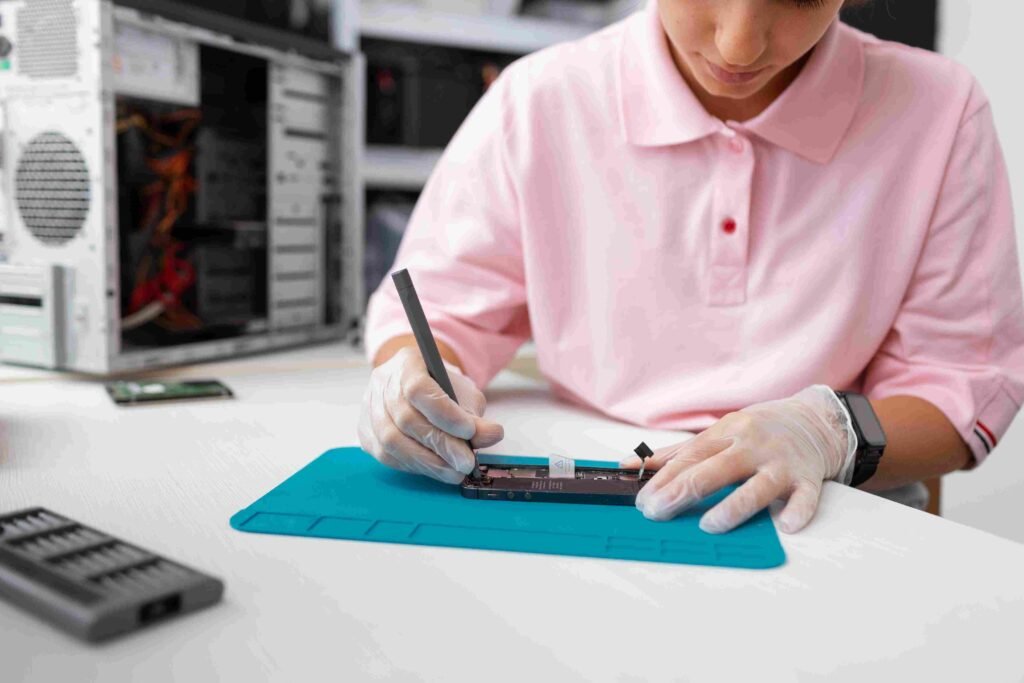
6. Test Your Computer’s RAM
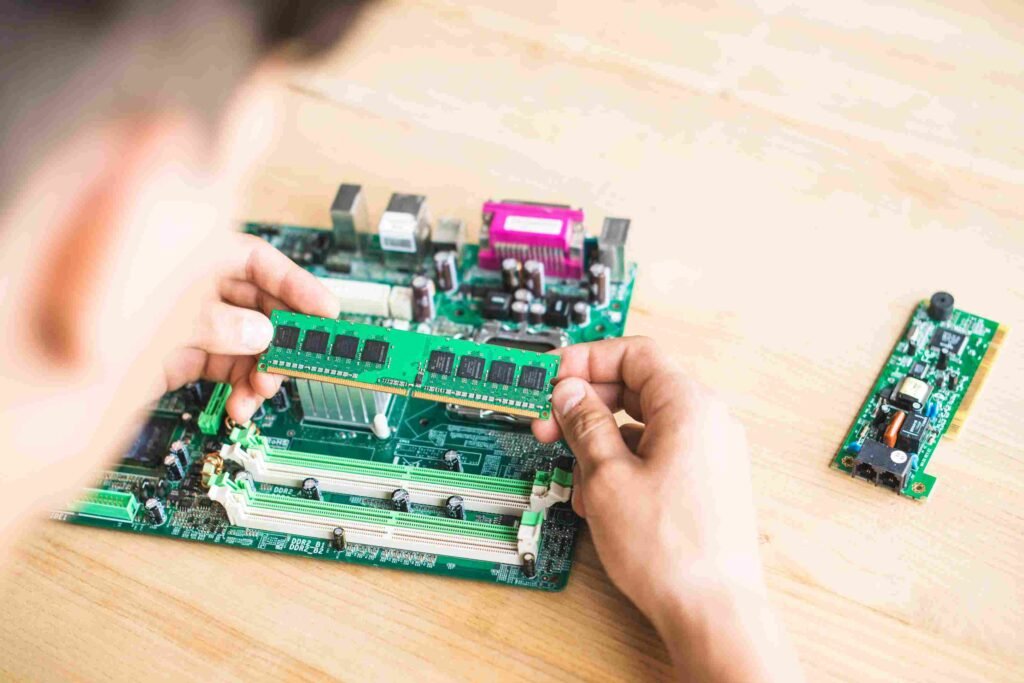
Faulty memory can cause crashes, freezes, blue screens, and unexpected restarts. Memory problems may be especially noticeable when running several applications or demanding software simultaneously.
Windows Memory Diagnostic provides a way to test your computer’s memory.
To run it:
- Press Windows + R.
- Type mdsched.exe and press Enter.
- Choose the option to restart and check for memory problems.
- Allow the test to complete.
- Review the results after Windows starts again.
Save your work before beginning because the test requires a restart.
If the test reports memory errors, you may need additional hardware diagnostics. A technician can help determine whether a memory module or another component is responsible.
Do not immediately replace RAM based on a single unexplained restart. Other hardware faults can produce similar symptoms.
If you inspect internal components yourself, shut down and unplug a desktop computer first, follow the manufacturer’s instructions, and take appropriate precautions against static electricity.
7. Check the Power Supply and Connections
Power problems can explain why does my computer randomly restart, particularly when the system loses power without displaying a Windows error.
Start with simple external checks. Make sure the power cable is securely connected and inspect it for visible damage. If you use a power strip, check that it is functioning correctly and that the computer is not connected to an overloaded outlet.
For a laptop, inspect the charger and charging connection for obvious damage. If the laptop becomes unstable when switching between battery and charger power, the battery, adapter, or charging circuitry may need testing.
For a desktop, a failing power supply unit may cause restarts during demanding tasks. However, similar symptoms can also result from overheating or other faulty components.
Do not open a power supply unit yourself. Its internal components can retain dangerous electrical charges even after it has been unplugged. Seek professional assistance if an internal electrical problem is suspected.
8. Scan Your Computer for Malware
Malware can affect system performance, interfere with applications, and compromise Windows security. A security scan is worthwhile when investigating unexplained system problems.
Windows includes Microsoft Defender through the Windows Security application.
To run a scan:
- Open the Start menu.
- Search for Windows Security.
- Select Virus & threat protection.
- Open Scan options.
- Choose Full scan.
- Start the scan and follow the recommended actions if threats are detected.
A full scan may take some time, depending on the amount of data stored on your computer.
Avoid installing several real-time antivirus products simultaneously because they can conflict with each other. Use a reputable security solution and keep its protection updated.
Malware is only one possible cause of a PC that keeps restarting. If the scan finds no threats, continue investigating drivers, temperature, Windows errors, and hardware.
9. Try Safe Mode or System Restore
If the previous methods do not solve the problem, Safe Mode and System Restore may help identify or reverse certain software-related changes.
Safe Mode starts Windows with a limited set of drivers and services. If the computer remains stable in Safe Mode but restarts during normal operation, a driver, application, or startup component may be contributing to the problem.
You can access Windows recovery options through Settings or the Windows recovery environment. The exact steps depend on your Windows version and whether the system can start normally.
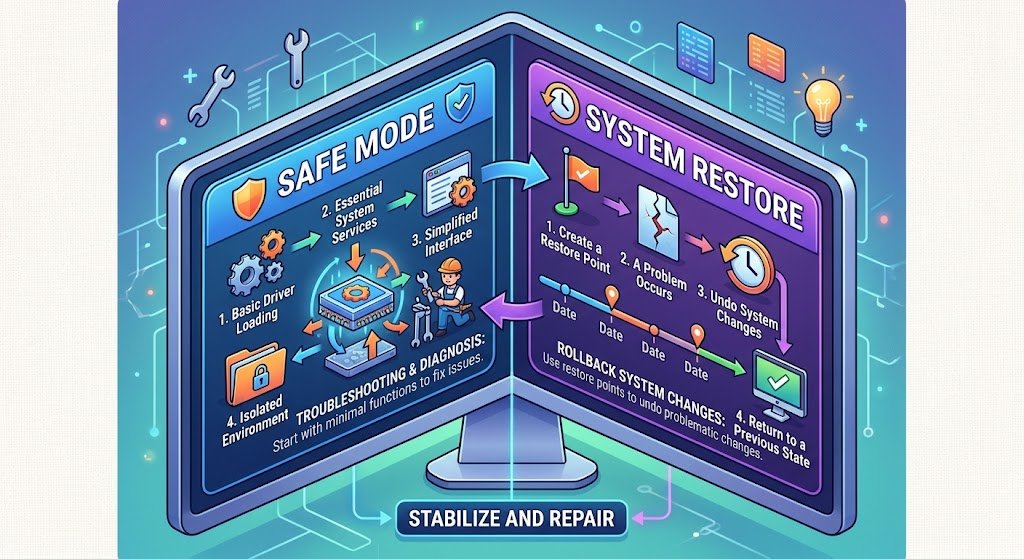
System Restore can return certain system files, drivers, installed applications, and settings to an earlier restore point. It may help if the restarting issue began after a recent software installation or system change.
Before using recovery tools, back up important files whenever possible. System Restore is not a substitute for a personal data backup, and it cannot repair every hardware problem.
If Windows cannot remain running long enough to complete these steps, professional diagnostics may be the safer option.
Why Does My Laptop Keep Restarting?
A laptop can experience the same problems as a desktop computer. These include faulty drivers, damaged Windows files, memory errors, and overheating.
However, a laptop also depends on its battery, charger, and compact cooling system. These components can contribute to unexpected restarts.
If you wonder why does my laptop keep restarting, first consider when the problem occurs.
If restarting happens during gaming or other demanding activities, overheating may be involved. Blocked vents, dust buildup, or a cooling problem can prevent the laptop from maintaining safe operating temperatures.
If the laptop restarts when you move the charging cable, inspect the charger and connector for visible damage. A loose connection or faulty power adapter may require professional testing.
If the issue began after installing an application or updating a driver, investigate that recent change.
Check whether the laptop displays a blue screen or simply loses power. This distinction can help narrow down the possible cause.
If your computer keeps restarting while you are using a laptop, check whether the problem occurs on battery power, while charging, or during demanding tasks. This information can help identify potential problems with overheating, the charger, or the battery.
Never continue using a laptop that shows signs of battery swelling, burning smells, or electrical damage. Shut it down if safe to do so and seek qualified repair assistance.

How to Prevent Your Computer from Restarting Randomly
Although not every hardware failure can be prevented, regular maintenance can reduce avoidable problems.
Keep Windows updated and install compatible drivers. Clean accessible dust from cooling areas and keep your computer’s air vents clear.
Use reliable power connections and download software only from trusted sources. These habits can help improve system stability.
Keep Windows updated: Install appropriate security and stability updates, but investigate recurring problems that begin after a particular update.
If your computer keeps restarting repeatedly, keeping your system clean, installing compatible drivers, and checking for warning signs can help you identify potential problems earlier. Regular maintenance and reliable backups also help protect your files.
Maintain good airflow: Keep vents clear and clean accessible dust from cooling areas according to the manufacturer’s guidance.
Use reliable power connections: Avoid damaged cables, overloaded outlets, and unsuitable power adapters.
Install trusted software: Download applications and drivers from reputable sources, and remove software you no longer need.
Monitor error messages: Record stop codes, warning messages, and the circumstances surrounding each restart. These details can make troubleshooting more effective.
Back up important files: Maintain regular backups on a separate storage device or a trusted cloud service. This is especially important if the computer is becoming unstable.
Avoid unnecessary hardware changes: Replace components only after testing provides a reasonable indication of what has failed.
These habits will not eliminate every possible cause, but they can help you identify problems earlier and protect your important data.
When Should You Seek Professional Help?
Some restarting problems require more than basic troubleshooting. Consider contacting a qualified computer technician if the computer repeatedly restarts before Windows loads, memory tests report errors, or the system remains unstable after reasonable software checks.
Professional help is also advisable if you suspect a failing power supply, motherboard damage, or an internal cooling problem.
If you notice a burning smell, battery swelling, sparks, or other signs of electrical damage, stop using the device and disconnect external power if it is safe to do so.
Avoid repeatedly forcing a computer to restart when it cannot complete startup. Repeated failures may complicate recovery, and the underlying issue may need proper diagnosis.
Frequently Asked Questions
Why does my PC keep restarting without warning?
Possible causes include overheating, faulty hardware, unstable power, driver conflicts, and Windows system errors. Check the symptoms and any error messages to narrow down the cause.
Why does my PC keep rebooting during startup?
A startup loop can result from damaged system files, incompatible drivers, failed updates, or hardware problems. Windows recovery tools may help, but repeated startup failures can require professional diagnostics.
Can Windows updates cause repeated restarts?
Some updates require normal restarts. However, repeated unexpected restarts after an update may indicate an update problem, a driver conflict, or another underlying issue.
How do I stop Windows from restarting automatically?
If the computer restarts after a system failure, you may be able to disable Automatically restart under Startup and Recovery settings. This helps reveal certain error messages but does not repair the cause.
Should I reset Windows if my computer keeps restarting?
A Windows reset may help with some persistent software problems, but it should not be the first step. Back up important files and investigate simpler solutions first. A reset will not repair faulty hardware.“If your computer keeps restarting after these fixes, consider seeking help from a qualified technician.”
Conclusion
When your computer keeps restarting, the most effective solution is to identify the underlying cause instead of immediately replacing hardware or reinstalling Windows.
If your computer keeps restarting even after trying these troubleshooting methods, record any error messages and consult a qualified technician to investigate possible hardware or software faults.
Start by checking the temperature, power connections, Windows updates, and device drivers. If the problem continues, investigate system files, memory, malware, and Windows recovery options.
Pay attention to whether the computer displays an error message, restarts during demanding tasks, or loses power without warning. These clues can help you narrow down the possibilities.
When your computer keeps restarting without a clear reason, pay attention to error messages and the conditions that trigger the problem. These details can help you choose the right repair instead of trying random fixes.
With careful troubleshooting, you may be able to resolve a software-related problem yourself. If the restarts continue or you suspect a hardware fault, seek professional assistance to protect your computer and important data.