
If you spend a lot of time in video meetings, online classes, remote work, or content creation, your desk setup can become crowded very quickly. You may need a monitor, webcam, microphone, speakers, and several cables just to join a simple video call. A monitor with camera combines some of these essentials into one convenient display.
Instead of placing a separate webcam on top of your screen, you can use a monitor with a built-in camera for video calls and online meetings. Many modern models also include microphones, speakers, USB ports, and USB-C connectivity, making them useful for both work and entertainment. Some current conferencing monitors offer features such as high-resolution cameras, HDR, automatic framing, microphones, privacy shutters, and USB-C connectivity.
But does every built-in camera monitor make sense for every user? Not necessarily. Your ideal choice depends on your work, screen size, resolution, camera quality, connectivity, and budget.
In this guide, I will explain what to look for, who should consider one, and how to choose the right display for your setup.
What Is a Monitor with Camera?
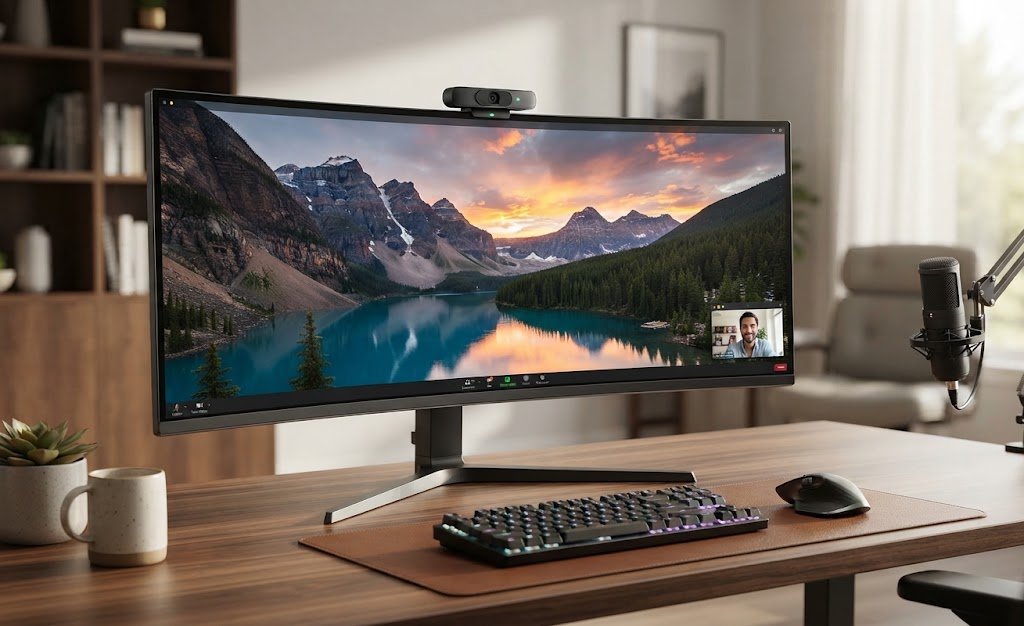
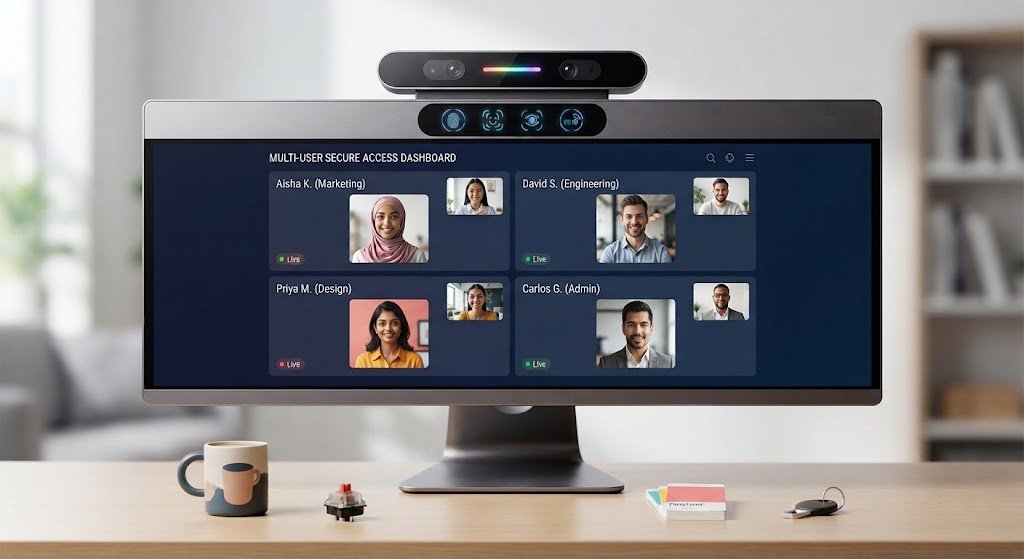
A monitor with camera is a computer display that has a webcam built directly into the monitor, usually along the top bezel. Instead of buying a monitor and separate webcam, you get both functions in one device.
These monitors are mainly designed for video conferencing, remote work, online learning, streaming, and communication. Depending on the model, the built-in system may include a camera, microphone, speakers, and privacy shutter.
For example, some modern monitors include high-resolution webcams with HDR, automatic framing, noise-reducing microphones, and physical camera shutters.
The biggest advantage is convenience. Your camera is already positioned with the display, so you can connect your computer and start a video call without arranging an external webcam.
How Does a Built-In Camera Monitor Work?
The camera works much like an external webcam. Your computer recognizes the integrated camera as an available video device, allowing compatible applications to use it for meetings and calls.
Depending on the model, you may also get:
- Built-in microphone
- Stereo speakers
- Autofocus
- Automatic exposure
- HDR support
- Automatic framing
- Physical privacy shutter
- Windows Hello support
- USB-C connectivity
A physical shutter is particularly useful because it gives you a simple way to cover the camera when you are not using it. Some conferencing displays specifically include mechanical shutters for privacy.

Why Choose a Monitor with Camera?
The biggest reason is simplicity. A traditional setup may require a monitor, webcam, microphone, speakers, and multiple cables. A built-in solution can reduce the amount of equipment sitting around your desk.
For a busy home or office workspace, a monitor with camera can make everyday communication much easier. Instead of managing several separate devices, you can keep your display, webcam, and other conferencing features together in one setup.
1. Great for Remote Work
For people who attend Zoom, Microsoft Teams, Google Meet, or other online meetings regularly, having a built-in webcam can make the setup easier.
You do not have to attach a webcam every morning or adjust its position before a meeting. Once the monitor is installed correctly, the camera is already in place.
2. Saves Desk Space
A separate webcam often sits on top of the display, while speakers and microphones can take up additional space. Combining these features can create a cleaner workspace.

3. Convenient for Students
Students attending online classes can benefit from a display that provides both a large screen and a built-in camera. It can also make presentations and group discussions more convenient.
4. Useful for Content Creators
A built-in camera may be enough for casual video calls, live meetings, and simple streaming. However, professional creators may still prefer a dedicated camera because it can offer more control over lenses, framing, and image quality.
Monitor with Webcam vs Separate Webcam
The terms monitor with webcam and monitor with camera are often used for essentially the same type of product: a display with an integrated camera.
A built-in webcam has a major convenience advantage. It stays attached to the monitor and generally requires less desk space.
A separate webcam, however, provides more flexibility. You can move it, change its height, position it farther away, or upgrade it without replacing your monitor.
So the choice depends on your priorities. If convenience and a clean setup matter most, an integrated camera can be useful. If camera flexibility and advanced video quality matter more, a dedicated webcam may be preferable.

Important Features to Check Before Buying
Not every camera-equipped monitor offers the same experience. Before buying one, look beyond the word “webcam” and check the complete specifications.
Camera Resolution
Camera resolution affects how clear you appear during video calls. A 1080p webcam can be suitable for everyday meetings, while higher-resolution cameras can provide more detail.
Some current conferencing displays use 5MP cameras and offer features such as HDR and automatic framing.
However, resolution is not everything. Sensor quality, lighting, autofocus, exposure, and software processing can also affect the final image.
Microphone Quality
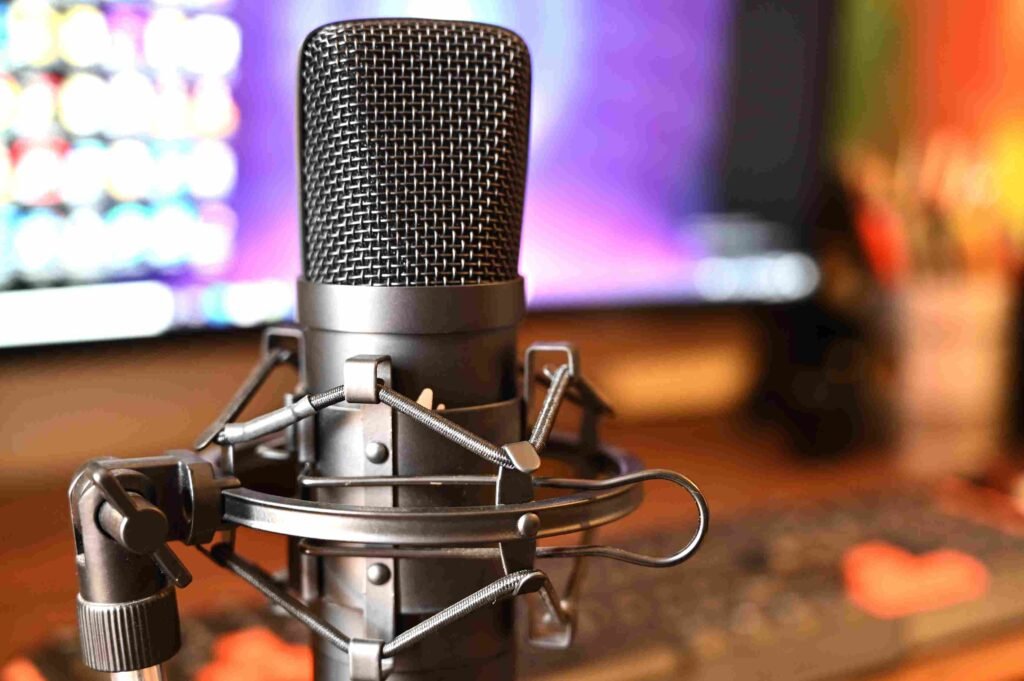
A camera is useful for video, but your voice also needs to sound clear. Look for a monitor with a built-in microphone system that includes noise reduction or noise cancellation if you frequently attend meetings.
Some conferencing monitors integrate dual microphones and noise-reduction technology to improve voice clarity.
Display Resolution
Your display resolution should match the type of work you do.
Full HD can be sufficient for basic office tasks. 2K monitors offer a useful middle ground for people who want more screen detail without always moving to 4K.
4K can make sense for professional design, detailed editing, large screens, and high-resolution content. But buying 4K simply because it sounds better is not always necessary.
OLED and Mini-LED Displays
Display technology is another important consideration.
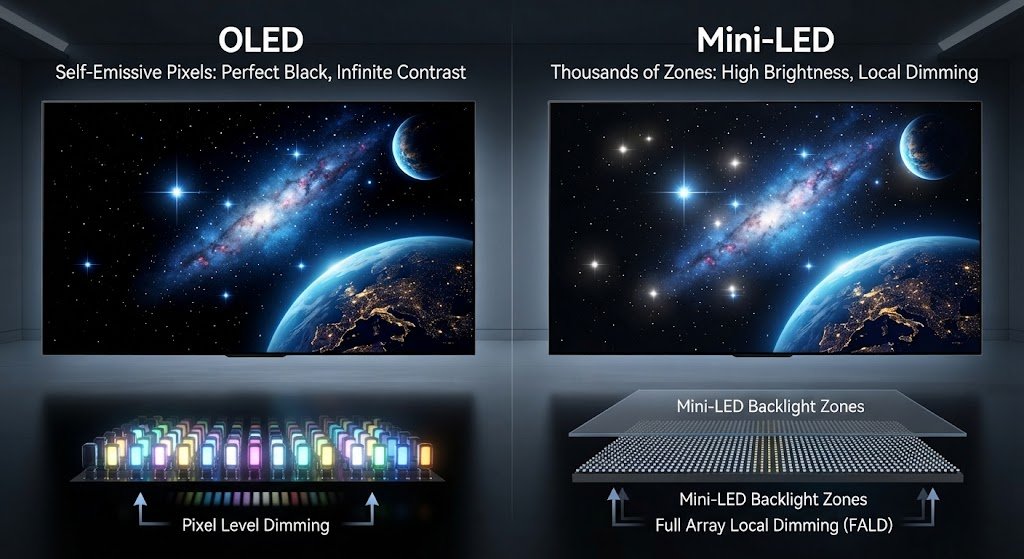
A portable OLED monitor can be attractive for users who want strong contrast and a lightweight second-screen setup. OLED panels are particularly known for deep blacks and high contrast.
A mini-LED monitor can also be an interesting option for people who care about HDR, brightness, contrast, and creative work. Modern Mini-LED displays can use local dimming zones to control backlight brightness across different areas of the screen. For example, Lenovo’s ThinkVision Mini-LED displays have used local dimming and wide color coverage for professional visual work.
Remember that panel technology and camera quality are separate considerations. A beautiful display does not automatically mean that its webcam will be excellent.
Choosing the Right Monitor Size
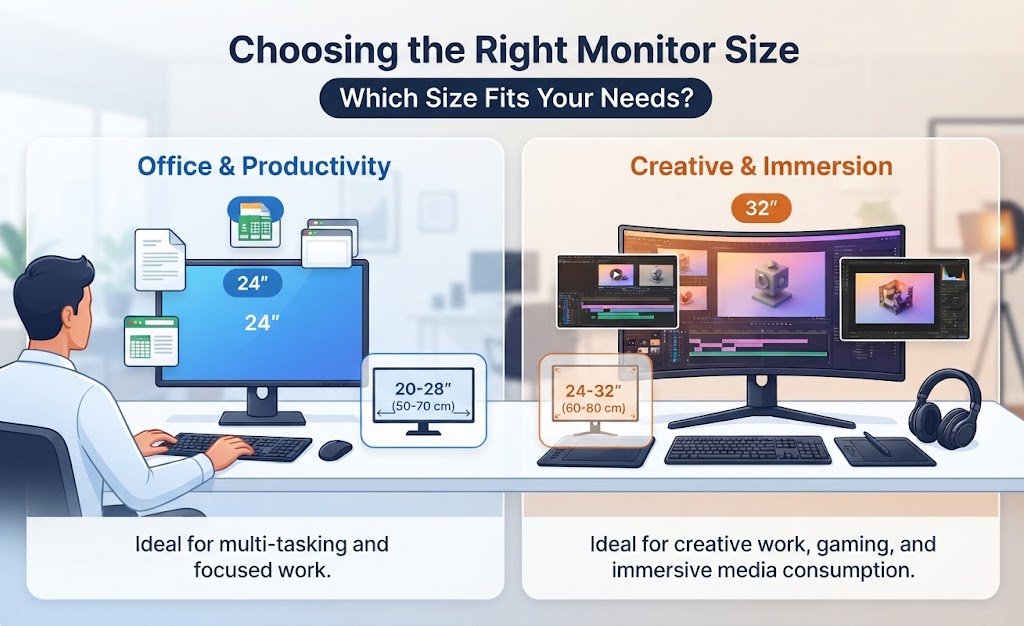
Screen size should match your desk, viewing distance, and workload.
A 24-inch or 27-inch monitor is a common choice for office work and video conferencing. Larger displays can provide more room for multiple applications.
An 18 inch computer monitor can be interesting for users who want something larger than a typical portable screen without moving to a full-size desktop display.
If video meetings are part of your daily routine, a monitor with camera can be a practical choice because the webcam is already positioned with the screen.
For travel, a 15.6 inch portable monitor can be easier to carry. These displays are commonly used as second screens for laptops and mobile workstations.
Before buying a portable model, check its weight, stand design, power requirements, ports, and compatibility with your laptop.
USB and USB-C Connectivity
Connectivity is one of the most important parts of a modern monitor.
A USB monitor can provide additional flexibility when connecting computers and accessories, but you should carefully check what the USB connection actually supports.
USB-C is especially useful when it supports DisplayPort video and power delivery. Some modern monitors can transfer video, data, and power through a single USB-C connection, reducing cable clutter. One current Dell conferencing monitor, for example, supports USB-C with DisplayPort Alt Mode and power delivery.
Before purchasing, check whether your laptop’s USB-C port supports video output. Not every USB-C port has the same capabilities.
Is a 4K Monitor Necessary for 3D Work?
This is a common question among designers and 3D users, including discussions often phrased as “do you need a 4k monitor for 3d work reddit.”
The simple answer is that 4K can be helpful, but it is not automatically required.
For 3D modeling, the quality of your graphics card, software performance, color accuracy, screen size, and workspace can be just as important as resolution.
A 2K display can still provide a detailed workspace and may be easier for a computer to drive at high frame rates. On the other hand, 4K can provide more pixels for detailed models, textures, timelines, and multiple windows.
For professional visual work, also pay attention to color coverage and accuracy. Some professional Mini-LED displays provide wide color-gamut coverage alongside high resolution.

Portable Monitor with Camera: Is It Useful?
Portable displays are designed for users who need an additional screen away from a traditional desk.
A portable OLED monitor can be particularly attractive for travelers, freelancers, students, and remote workers. You can carry it with a laptop and create a dual-screen workspace almost anywhere.
However, do not assume every portable monitor includes a built-in camera. Many portable displays focus on portability and display quality rather than integrated conferencing features.
If you specifically need a camera, check the product specifications for an integrated webcam, microphone, and operating-system compatibility before buying.
Monitor with Camera for Different Users
Remote Workers
Look for a comfortable screen size, good webcam, microphone, USB-C, adjustable stand, and privacy shutter.
Students
A simple Full HD or 2K display with a reliable camera may be enough for classes and online meetings.
Gamers
Gaming users should pay more attention to refresh rate, response time, adaptive sync, and GPU compatibility. The camera is usually secondary unless they also stream.
Designers and Creators
Prioritize resolution, color accuracy, panel quality, connectivity, and ergonomic adjustment. A built-in camera is useful for meetings but should not replace attention to display performance.
Travelers
Portability, weight, USB-C connectivity, and power requirements become more important. A portable display can be a practical second screen, but camera availability varies between models.
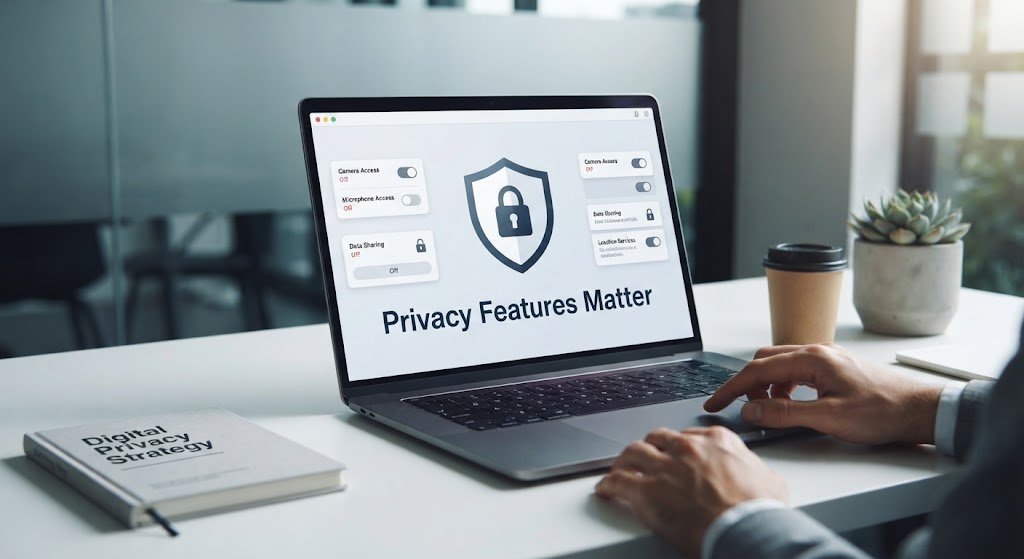
Privacy Features Matter
A built-in camera is convenient, but privacy should not be ignored.
Look for a physical camera shutter if possible. A mechanical shutter lets you physically cover the lens when the camera is not being used. Some modern conferencing monitors include this feature specifically for privacy.
You should also review your computer’s camera permissions and only allow trusted applications to access the camera.
A monitor with camera with a physical privacy shutter gives you extra convenience while keeping camera access under your control.
Advantages and Disadvantages
Advantages
- Built-in webcam
- Cleaner desk setup
- Fewer accessories
- Convenient video meetings
- Potentially built-in speakers and microphones
- Useful for remote work
- USB-C connectivity on many modern models
Disadvantages
- May cost more than a regular monitor
- Built-in camera positioning may be less flexible
- Camera quality varies significantly
- You may replace the display before needing to replace the webcam
- Portable models may have fewer features
How to Choose the Right Model
Choosing a monitor with camera becomes easier when you first decide how often you use video calls and which display features matter most to you.Before buying, create a short checklist based on your actual needs.
For office work: prioritize webcam quality, microphone, USB-C, ergonomics, and eye comfort.
For gaming: prioritize refresh rate, response time, resolution, and graphics compatibility.
For creative work: prioritize color accuracy, resolution, panel technology, and connectivity.
For travel: prioritize weight, portability, USB-C, power efficiency, and screen size.
For frequent video calls: prioritize camera quality, microphone performance, privacy shutter, and automatic framing.
There is no single monitor that is perfect for every user. The best specifications are the ones that solve your actual problems without adding features you will never use.
Frequently Asked Questions
Is a monitor with a built-in camera worth it?
It can be worthwhile if you frequently use video calls and want a cleaner, simpler workspace. If you already own a high-quality external webcam, the additional value may be smaller.
Can I use the camera with my laptop?
Usually, yes, provided the monitor and laptop use compatible connections and the computer supports the required camera interface. Always check the manufacturer’s specifications.
Do monitors with cameras have microphones?
Many conferencing-oriented models do, but it is not guaranteed. Check the specifications before purchasing.
Is 2K enough for office work?
For many office users, 2K provides a useful balance between sharpness and system requirements. The ideal resolution still depends on screen size and workload.
Are portable monitors good for travel?
Yes. They can provide valuable extra screen space when working away from a desktop. Just check their weight, power requirements, connectivity, and compatibility.
Final Thoughts
A monitor with camera can simplify a modern workspace by combining a display with video-conferencing hardware. It is especially useful for remote workers, students, professionals, and anyone who regularly joins online meetings.
When choosing one, do not focus only on the camera. Consider the complete package: display resolution, panel technology, screen size, microphone quality, connectivity, ergonomics, privacy, and your specific workload.
For basic communication, a Full HD display and good webcam may be enough. For more demanding work, you may prefer 2K or 4K resolution, a high-quality IPS, OLED, or Mini-LED panel, and stronger connectivity.
The most important thing is to choose according to how you actually work. A well-balanced monitor can make your desk cleaner, your meetings easier, and your everyday computer experience more comfortable.